
How it works
SILQ keeps your practice data, but not your documents. Your documents are your intellectual property, so they stay in your own document storage. When Google Drive is connected, SILQ:
- creates a folder in Google Drive for each matter
- saves the documents and emails you create in SILQ to that matter’s folder
- opens the matter’s Google Drive folder when you select Matter Folder.
Before you start
- Set up Google Drive first. You need a Google account with Google Drive for your practice, such as a Google Workspace account. If you have existing documents, move them into Google Drive before you connect.
- Use one browser. SILQ connects to the Google account that’s signed in on the browser you use for SILQ, so do every step in that browser.
- Allow pop-ups for SILQ. The Google sign-in opens in a pop-up window, which some browsers block.
Step 1: Sign in to the right Google account
SILQ links to whichever Google account is signed in on your browser. Check it’s the right one before you connect, especially if you also have a personal Google account.
- Go to drive.google.com and sign in.
- Select your profile picture or initial in the top-right corner and check the email address shown.
- If it’s not the account you want to connect, select Add another account or sign out, then sign in with the right account.
Step 2: Choose Google Drive in SILQ
- In SILQ, select the cog icon in the top-right corner to open System settings.
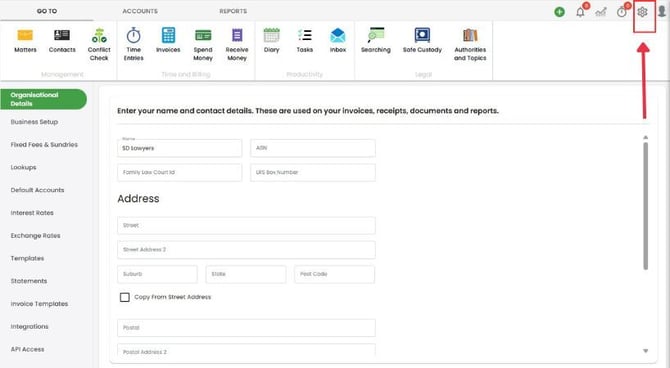
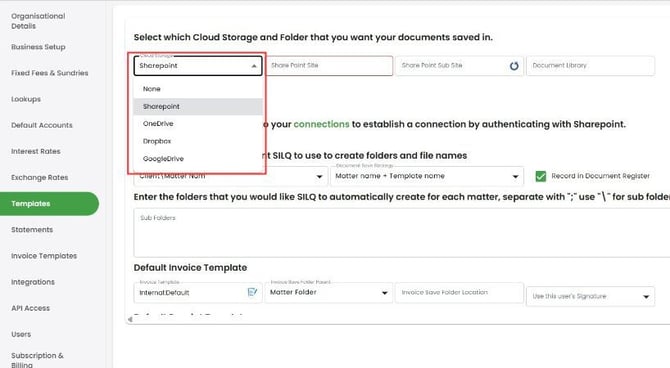
2. Select the Templates tab in the green menu on the left.
3. From the Cloud Storage dropdown, select Google Drive.
Step 3: Connect to Google Drive
- Select Connect to Google Drive. You can also connect from your Connections page in your SILQ profile.
- A Google sign-in window opens as a pop-up. If nothing appears, your browser may have blocked it. Look for the blocked pop-up icon in the address bar, allow pop-ups for SILQ, then select Connect to Google Drive again.
- Choose the account you checked in Step 1.
- Google asks you to give SILQ access to your Google Drive. Select Allow. If Google says your organisation hasn’t approved SILQ, ask your Google Workspace administrator to allow it, then try again.
- When the window closes (or once you’ve closed it), return to SILQ.
Step 4: Choose folders and file names
- For the best experience, choose a root folder. You can call it anything, for example SILQ or SILQ Matters. SILQ creates matter folders inside it. If you don’t choose one, SILQ creates matter folders at the top level of your Google Drive.
- Choose the folder naming strategy. This sets how SILQ names the folder it creates for each matter.
- Choose the file naming strategy. This sets how SILQ names the documents it saves in those folders.
- Select Save.
Tip: choose your naming strategies before you start creating documents, so your folders are consistent from the start.
Step 5: Check the connection
- Go to the Matters screen and open a matter.
- Select Matter Folder.
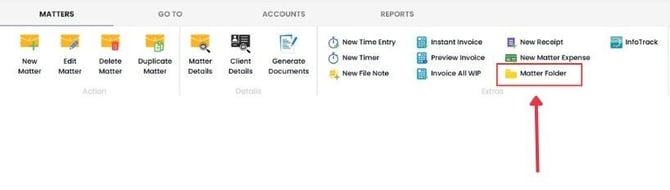
3. If Google Drive opens at that matter’s folder, you’re connected and ready to go.
4. If you see a Google sign-in screen instead, sign in with the account from Step 1, allow access, then select Matter Folder again.
Troubleshooting
The wrong Google account is connected. Sign in to the right account in your browser (see Step 1), then connect again (see Step 3).
Matter Folder doesn’t open anything. Your browser is probably blocking pop-ups. Allow pop-ups for SILQ, then select Matter Folder again.
Google says my organisation hasn’t approved SILQ. Your organisation only lets approved apps access Google Workspace. Ask your Google Workspace administrator to allow SILQ, then connect again.