
You can add generated documents, external documents or emails for a particular matter.
There are two ways to upload documents. The simple way is that you can drag and drop a document into this window, this is fast and effective when you just need to get the document uploaded to the matter. However, if you want to make sure of the information on the document you are uploading then the second option allows you to upload a document but gives you ability to record all relevant details for the document.
First you need to save the document, email etc, into the client folder on your hard drive or online document system. To locate that folder, just click on the Open Matter Folder button at the top of the Matter Details window. SILQ will automatically open up the client folder on your hard drive or online document system where you can save the document, email etc.
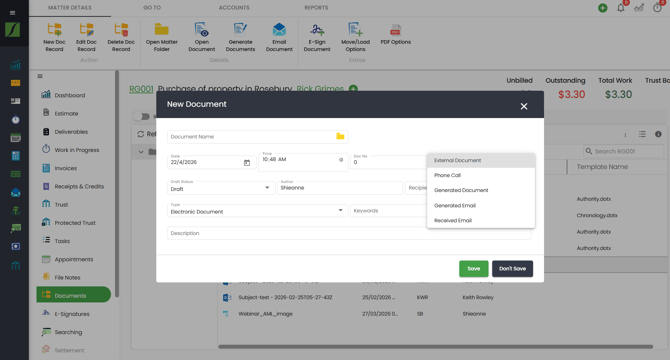
Next, click on the New Doc Record button on the top toolbar. The Update Document window will open ready for you to enter the details of the external document or email.
Fields:
- Date: This is the date the document was created
- Time: This is the time the document was created
- Class: The class indicates how the document was produced. Eg A Generated Document was generated by SILQ, an External Document was created some other way.
- Description: This is a description of the document
- Draft Status: Is the document still a draft or is it complete
- Doc No: If you want to have document tracking numbers you can enter them here
- Type: This indicates what type of document it is. Eg is it a web page or is it a document
- Author: Who authored the document
- Recipients: Who the document was sent to
- Document Name: This is the file name of the document. This is the file that will be opened when you click on the Open Document button.
- Keywords: This allows you to enter searchable keywords so that you can find the document more easily later on.